Checked · 2026-08-28
How to Copy a Crosshair in VALORANT
Use /cc to copy a teammate crosshair while spectating, export your own profile code, or import a code copied from the web.

If you are spectating a player whose crosshair you want, open chat and type /cc. The full command, /crosshair copy, does the same thing. VALORANT saves the shown settings as a new crosshair profile.
That is the quick answer. But “copy a crosshair” can also mean exporting your own code or importing a code you found online. Pick the method that matches where the crosshair is now.
Choose the right copy method
- You see it while spectating: use
/ccor/crosshair copyin chat. You get a new saved profile. - It is your own crosshair: use Export Profile Code in Settings. You get a shareable code on your clipboard.
- It is a code on a website or in a message: copy the entire code, then use Import Profile Code in Settings. You get a new imported profile.
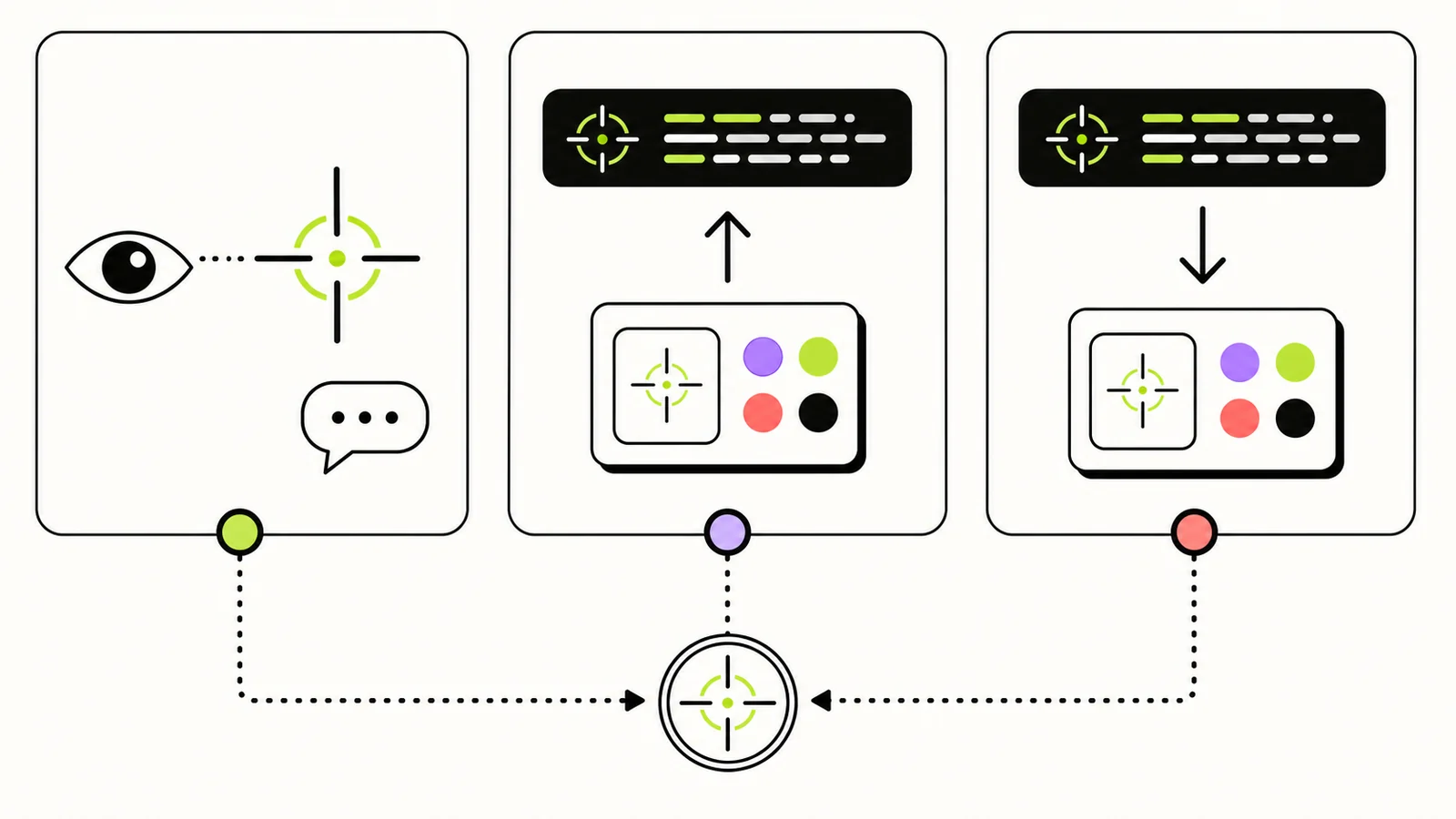
Riot documents the spectator commands in VALORANT Patch 5.04 and the import/export controls in Patch 4.05.
Copy a teammate’s crosshair while spectating
- Wait until you are spectating the player whose crosshair you want. Make sure their crosshair, not yours, is visible.
- Press
Enterto open chat. - Type
/ccand pressEnteragain. You can use/crosshair copyinstead if you prefer the full command. - Open Settings → Crosshair after the round or match and select the newly saved profile.
- Rename the profile so you can find it later, then test it before changing any values.
The command copies settings from the player you are currently watching. It does not copy a code from chat, a screenshot, or a crosshair worn by a player you are not spectating. Riot’s Patch 5.04 notes also document 15 available crosshair profiles, so a full profile list is worth checking when no new profile appears.
Export your own crosshair code
Use export when you want to send your current crosshair to a friend, save it in a note, or edit it outside the game.
- Open Settings → Crosshair.
- Select the profile you want to share.
- Click the Export Profile Code icon next to the Crosshair Profile selector. Riot describes it as the icon with an upward arrow.
- Paste the copied code into your message, note, or editor.
Export creates a text code on your clipboard. It does not add another profile to your account.
Copy a code from the web and import it
Start with a complete profile code. You can browse VALORANT crosshair codes, copy one, and then bring it into the game.
- Copy the full code. Avoid adding a space or line break at either end.
- In VALORANT, open Settings → Crosshair.
- Click Import Profile Code, the downward-arrow icon beside the profile selector.
- Paste the code into the field and choose Import.
- Check the preview, give the profile a recognizable name, and select it for a short Practice Range test.
If you want to change the code before importing it, open the VALORANT crosshair generator, paste the code, and adjust the profile while watching the preview.
If /cc does not copy the crosshair
Check these in order:
- Confirm that you are spectating the right player. The command reads the crosshair of the player currently on screen.
- Confirm that the spectated player’s crosshair is visible. Players have reported a specific failure message when Show Spectated Player’s Crosshair is disabled. That setting report comes from a community troubleshooting thread, not a current Riot support article, so treat it as a setting to check rather than a guaranteed fix.
- Check your saved profiles. Riot documented a 15-profile capacity in Patch 5.04. If all slots are occupied, remove a profile you no longer need and try again.
- Look for the new profile, not a clipboard code. Spectator copy saves settings as a profile. Use Export Profile Code afterward if you need the text code.
If the game accepts the command but the result looks different, first make sure you selected the newly created profile. Then compare its Primary, ADS, and Sniper Scope sections before editing it.
Copy, import, or export?
Use /cc when the crosshair is on a player you are spectating. Use Export Profile Code when the crosshair is already yours and you need a shareable string. Use Import Profile Code when the string came from Crosshair Maker, a friend, or another site.
Once the profile is saved, keep it as-is for a quick test or open the generator to make deliberate changes. A copied crosshair is a starting point, not a promise that it will suit your screen or aiming habits.